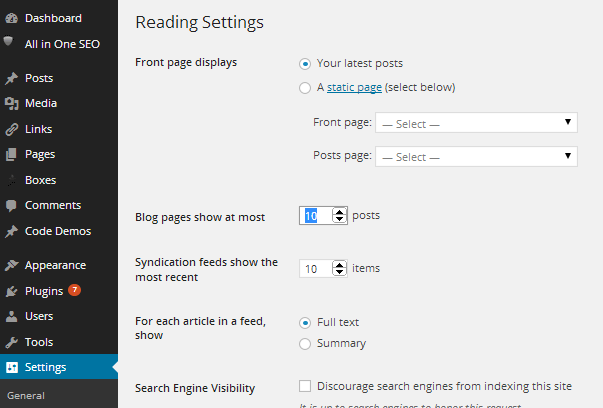
This plugin is not designed to show several pages of thumbnails, you must install the paging extension for that. It is designed to allow you to embed thumbnails into any page or widget, or to display a subset of thumbnails on a page or a widget.
To show more thumbnails on a page than the default value Blog pages show at most, use a fixed value for posts_per_page or try setting the posts_per_page value to ‘999’.
You can view or modify Blog pages show at most in the Reading Section of your WordPress Settings
Your theme must be enabled for post thumbnails.
You can use many of the parameters listed in the wordpress codex.
Click here to see the WordPress Codex for Posts
Here are some of the most common parameters:
cat = (*Use cat instead of category for posts if category does not work) category id. To view the category id, go to your post categories, edit the category and look in the browser address bar for the category id. If you don’t see it, click your mouse in the address bar.
It should look something like this. The category id is 7:
http://[YOUR SITE GOES HERE]/wp-admin/edit-tags.php?action=edit&taxonomy=category&tag_ID=7&post_type=post
posts_per_page – the number of posts to display (does not include sticky posts). The default is -1. This causes the post count to default to the value in Blog pages show at most.
ignore_sticky_posts – ignore sticky posts. According to the codex, when this is not set, sticky posts will be loaded first and will not be included in the posts per page. If you have two sticky posts and posts_per_page = 10, 12 thumbnails will be displayed.
post_type – the type of posts to display. The default is ‘post”. Enter any type that supports thumbnails. Obviously, you want to have featured images set for all of the posts that you are displaying in this grid. You can use ‘page’ here if your theme supports thumbnails on pages. You can enter custom post types, like ‘events’ in this section too.
orderby – Sort retrieved posts by parameter. The default is none.
order – ‘DESC’ or ‘ASC’
[thumbnailgrid cat='1' posts_per_page='5' post_type='post' order_by='author' order='ASC']
Will display the thumbnails for the 5 most recent posts from the category with the id of 1 sorted by the author name in ascending order
[thumbnailgrid]
Most properties can be set in the style sheet or in the custom CSS module for your theme. The following settings are shortcode settings that apply to individual grids. Note that for width and height values you may use any valid unit of height: px, cm, %, etc. Note: Media Image sizes are configured in the wordpress admin panel under Settings/Media. The default thumbnail size is 150px by 150px. The style sheet is configured to handle the default thumbnail size. To properly display your images, you must modify the height and witdth in the thumbanil shortcode or the style sheet.
Many of the parameters available in the Wordpress Codex can be used in the shortcode, with a few exceptions.
This new setting allows you to change the title that shows up when you hover over an image to the caption or alternate text of the image - This value defaults to the post title
[thumbnailgrid link_title="imagecaption"]]
The width of the grid. this value defaults to the width of the grid area or to the setting in the style sheet.
Use max width instead of width with align to wrap the grid when the window resizes.
When the gridwidth value is set, set this value to left, right, center or autocenter (as of version 5.3). center may not work in all themes. autocenter uses jQuery to center the grid instead.
[thumbnailgrid maxgridwidth="700px" post_type="post" aligngrid="left" posts_per_page = "3" cat="41"]
[thumbnailgrid maxgridwidth="700px" aligngrid="right" post_type="post" posts_per_page = "3" cat="41"]
[thumbnailgrid maxgridwidth="700px" aligngrid=""center" post_type="post" posts_per_page = "3" cat="41"]
[thumbnailgrid aligngrid="autocenter" cat="41" post_type="post" ]
Set showcaption=FALSE to hide the captions showcaption defaults to TRUE
[thumbnailgrid showcaption=FALSE posts_per_page = "3" post_type="post" cat="41"]
This value sets the caption height and hides the overflow (if there is more text than can fit into the caption area, it will not be visible). The display defaults to one line of text or the value in the style sheet.
Wrap the text in the caption. Normally the text is limited to one line and overflow is indicated by an elipses. Please note that, to avoid a misaligned grid, you should set a caption height when wrapping text in a grid that has more than one row. wraptext defaults to FALSE
[thumbnailgrid wraptext=TRUE captionheight="50px" posts_per_page = "3" post_type="post" cat="41"]
The caption width. This value defaults to the width variable above or to the setting in the style sheet.
[thumbnailgrid wraptext=TRUE captionwidth="5px" ]When set to true, only thumbnails with images will be displayed in the grid
[thumbnailgrid has_image=true]
The height of thumbnail image. This value defaults to the height of the thumbnail or the setting in the style sheet.
The width of the thumbnail image. This value defaults to the width of the thumbnail or the setting in the style sheet. To display an image proportionately, set this value to 'auto';
[thumbnailgrid width="25px" height="25px" posts_per_page="3" post_type="post" cat="41"]
If you have images of different sizes, use a fixed height and set the width to auto to display your thumbnails proportionately.
[thumbnailgrid cat="41" posts_per_page="3" imagesize="medium" height="100px" post_type="post" width="auto"]
Media Image sizes are configured in the wordpress admin panel under Settings/Media. You can use any size in the plugin. The default value is 'thumb'. thumb thumbnail medium large post-thumbnail.
If you wish, you can display the posts at the appropriate size for the image.
[thumbnailgrid cat="41" posts_per_page="3" post_type="post" imagesize="medium" height="200px" width="200px"]
Reminder: A page is a type of post. Use post_type to display thumbnails for pages or for custom posts.
You can use the following parameters to restrict posts. All of these parameters take a comma delimited list of post (or page) id's except for the tag_slug parameters.
[thumbnailgrid month="11" year="2014" day="30" has_thumbnails='TRUE']
Set a date range using before & after. Set inclusive = true to include before & after in the query.
You may also use "today" in place of the date. (Version 5.0 & up)
[thumbnailgrid before="today" inclusive=true has_thumbnails=true]
Setting debug_query to true can be used by advanced users to diagnose the query generated by this shortcode or for support purposes.
[thumbnailgrid debug_query=true has_thumbnails=true]